GQC Ubuntu Setup
Document is created based on Ubuntu 20.04LTS 64bit
Download and install Ubuntu
- Download ubuntu 20.04LTS 64bit from Ubuntu 20.04.5 LTS (Focal Fossa) from direct download link
- Install it by burning into a DVD or through a bootable USB stick.
- Use following credentials (if appropriate):
- Username:
ubuntu - Password:
Ubuntu2@22
- Username:
Dual Boot or Multiple Drives
If installing Ubuntu alongside Windows, either on the same drive or on a separate drive, make note of these possible deviations:
- If using multiple drives, ensure the boot manager/boot loader is installed on the proper drive.
- If installing on a new empty drive, make sure you format the drive first and create a partition before attempting to install the OS.
Setup the environment
Setup Git SSH keys to access
gqcrepos.Create the folder structure for storing code repos..
~/git/public~/git/projects~/git/gqc
Install VSCode and set it up for C development.
Python
Refer to Python Development Doc
for instructions on configuring virtualenvwrapper.
Install CUDA
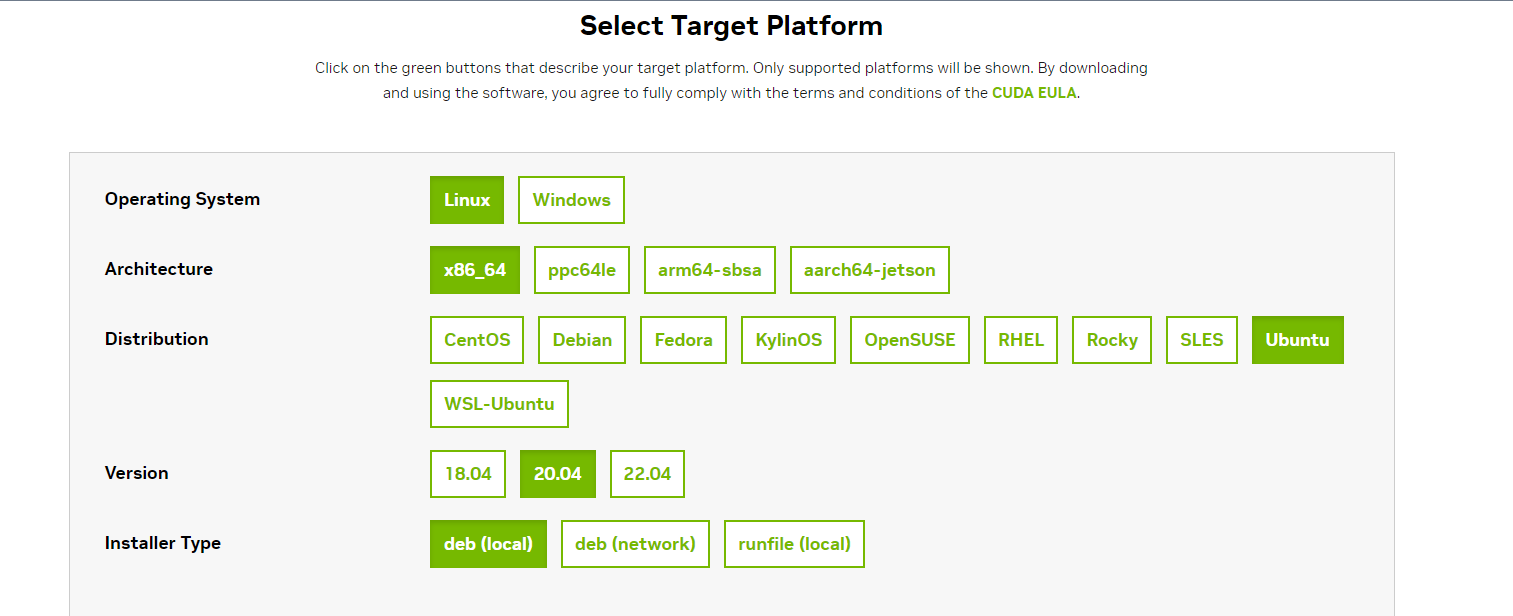
Here for the MSI system, the target platform was chosen. Here is the → link
Follow the steps shown in the prompt exactly.
DO NOT SKIP/MODIFY ANY STEP
Follow the instructions in the link.
- Complete the pre-installation steps
- To install the cuda toolkit, follow steps mentioned → here
Setting up Secure Boot
- During the installation process,
cudawill prompt you to Enable MOK Secure Boot on the system. - Follow instructions on the screen and enter a password of your choice.
- During the reboot, the system give you a prompt.
- Follow instructions in this GIST, install Nvidia driver on Ubuntu with Secure Boot (github.com)
- During the installation process,
Troubleshooting GPU drivers
We had an issue once with
nvidianot getting detected due to an unknown reason. Following are the steps that fixed it.- The
sudo apt purgecommand to remove the existing GPU libs failed due to a dependency issue (might be a cyclic dependency) sudo dpkg --remove --force-all <package_name>on all the libs causing the dependency issues fixed the problem withpurging.- Installed the
nvidia driverversion535from ppa database. (The provided link provides two methods of installation. Instructions can be litte unclear. Make sure you only install the driver through on method)
- The
nvidia-smifailing to load with the following error:Failed to initialize NVML: Driver/library version mismatch
NVML library version: 535.129- The reason could be a driver update.
- Simply rebooting the
MSImachine fixed this
Install VSCode extensions
- Jupyter (Microsoft) – Jupyter notebook support.
- markdownlint (David Anson) – Markdown linting and style checking. Not strictly necessary for Python development, but useful for Markdown documentation.
- Python (Microsoft) – Linting, Debugging (multi-threaded, remote), Intellisense, Jupyter Notebooks, code formatting, refactoring, unit tests, and more.
- Python Docstring Generator (Nils Werner) – Automatically generates detailed docstrings for python functions.
- Python Indent (Kevin Rose) – Correct python indentation.
- Tabnine Autocomplete AI (TabNine) - JavaScript, Python, Java, Typescript & all other languages - AI Code completion plugin.
- Code Spell Checker (Street Side Software) – Spell checker for VS Code. This was suggested as a replacement for Microsoft's deprecated plugin: Link
- VSCode Map Preview - Visual Studio Marketplace: Link
- Markdown All in One - Link