HEC-RTS
Importing Watershed to HEC-RTS 3.2.3
Install HEC-RTS and the example folder from the following website: https://www.hec.usace.army.mil/software/hec-rts/downloads.aspx
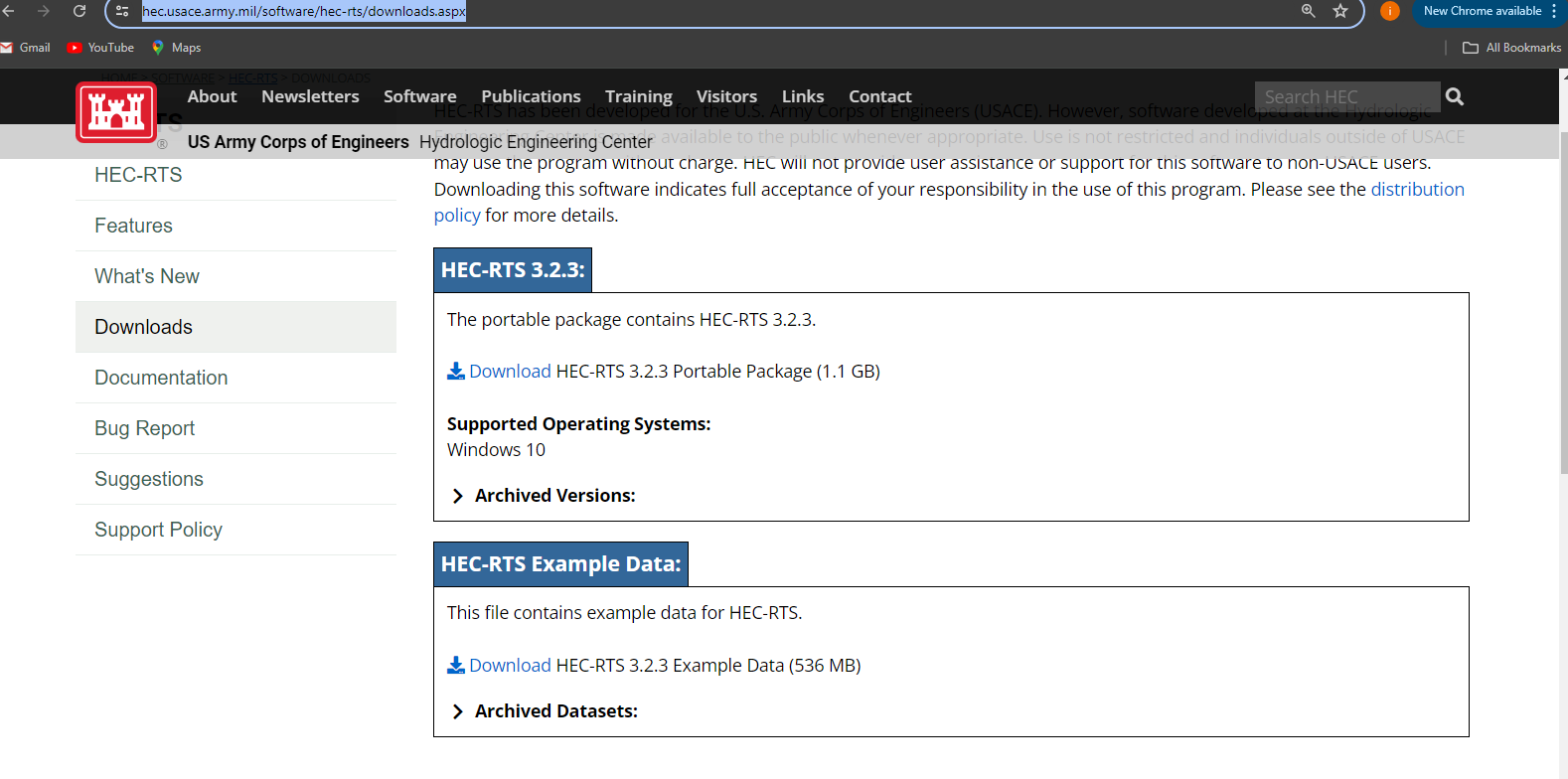
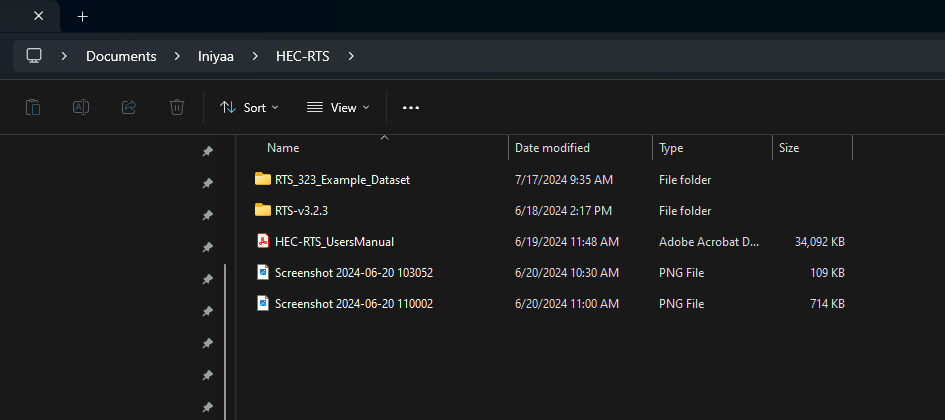
Downloaded example folder- (Russian river). Folder name: RTS_323_Example_Dataset
Example folder:
Starting HEC-RTS
Importing Watershed:
1) If watershed locations have not been set, from the HEC-RTS main window, from thr Tools menu, click Options. The Options dialog box will open.
2) Click Model Directories, from this tab the user will create watershed locations. Click Add Location, the Add Watershed Location dialog box will open. Enter a name for thr watershed location in the Name field.
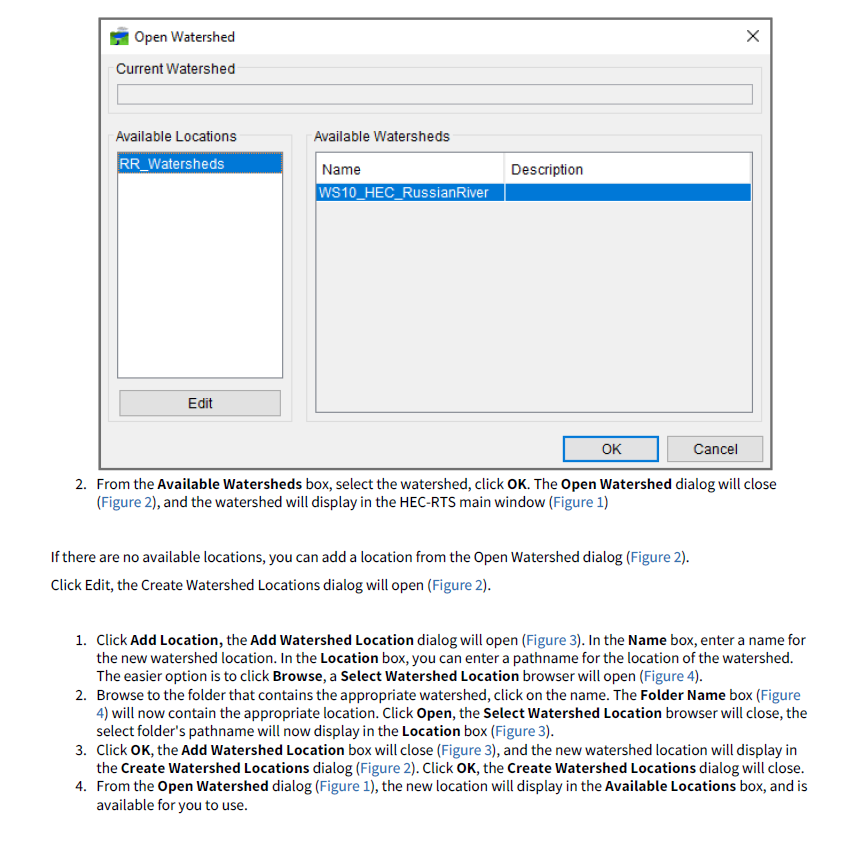
3) From the HEC-RTS main window, from the File menu click Open Watershed. The open Watershed dialog box will open.
4) From the HEC-RTS main window, from the File menu click Open Watershed. The Open Watershed dialog box will open.
To be noted:
Carefully choose the example folder, in our case we should select the following folder: Iniyaa-> HEC-RTS-> RTS_Test_Data
Problems faced:
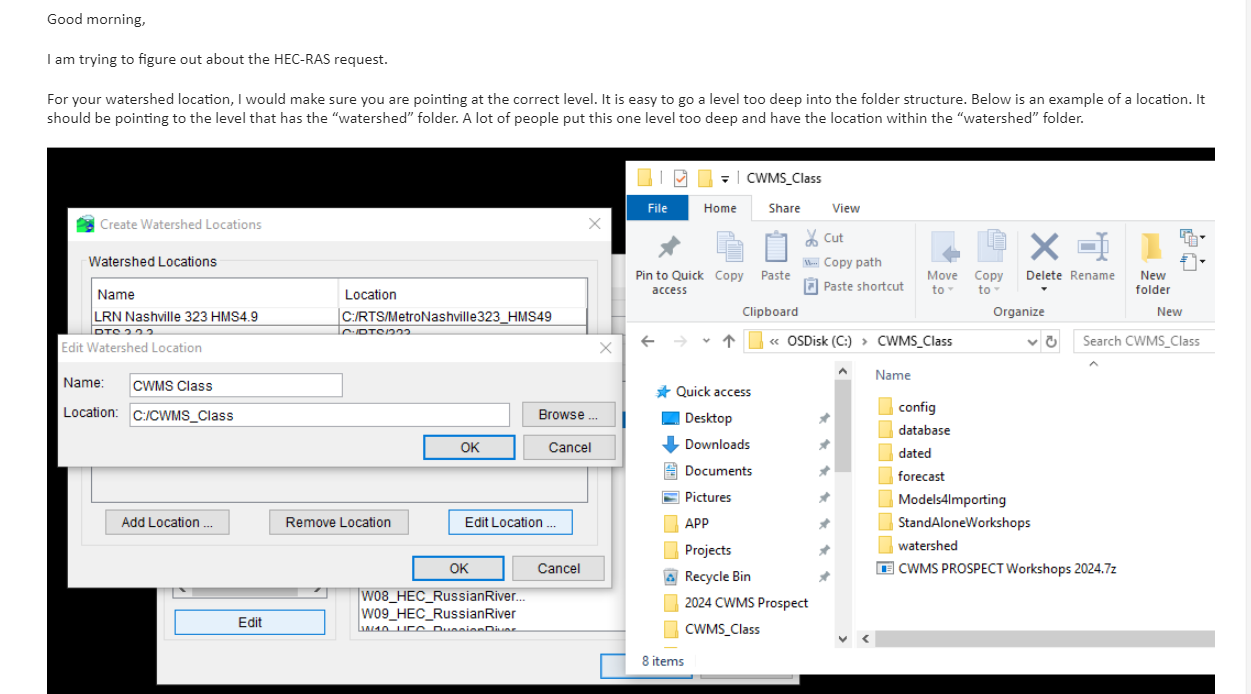
I went a level too deep into the folder structure and I was not able to see any available watersheds in the software.
To be noted: It's a common mistake to go a level deep as mentioned in the email below.
Overview:
RAS Plug in
The HEC-RTS was not able to recognize the RAS-plug in. When the HEC-RTS application was opened it said "failed to find the RAS server" "RAS Plug in not loaded".
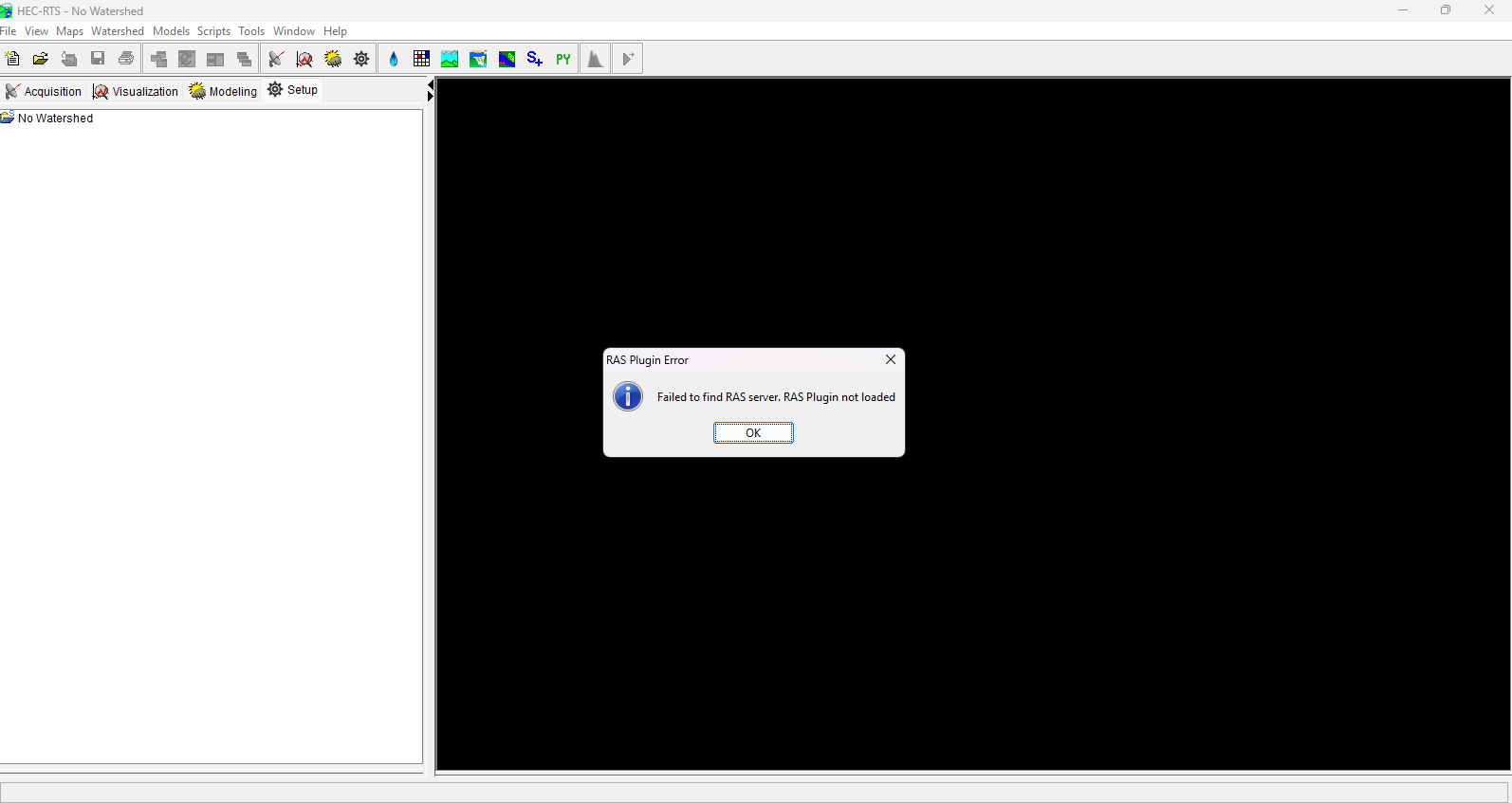
So, installed HEC-RAS 6.1 version under HEC-RTS-> RTS-v3.2.3-> HEC-RAS
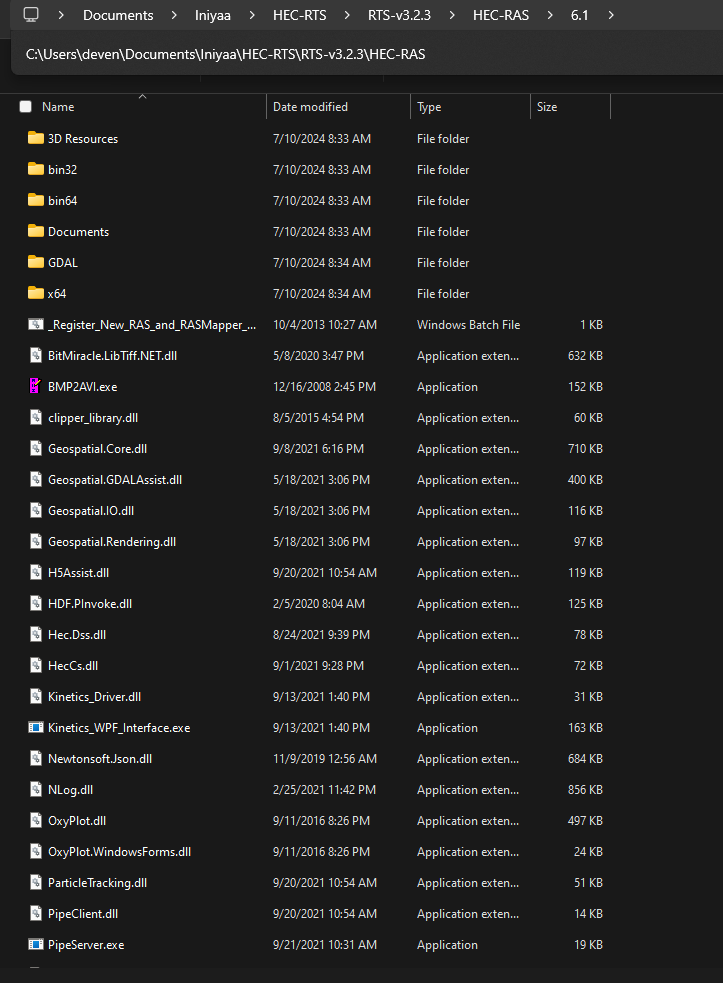
Open the HEC-RAS 6.1 before you launch HEC-RTS and now you will be able to see the RAS plugin. To view the plug-ins installed go to Tools-> Option-> RTS Plug-ins
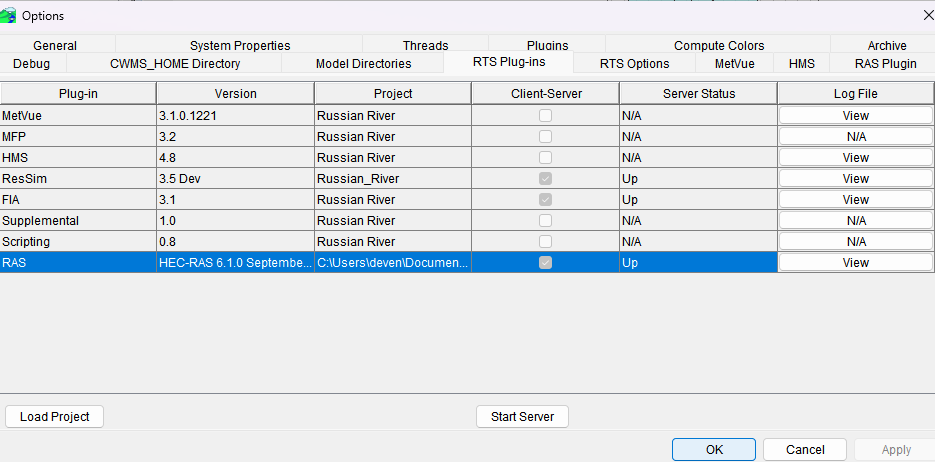
HEC-RAS 6.5 also could be used if the HEC-RAS 6.5 is available in the same directory as the HEC-RAS 6.1.
Importing Models to HEC-RTS
Refer to Real-Time Simulation (HEC-RTS) Quick Start Guide- CHAPTER 6.1
Importing HEC-ReSim Model
1) From the HEC-RTS main window, click the Setup module, from the Models menu, point to Import, click ResSim. An Import type message window will open, click on Watershed.
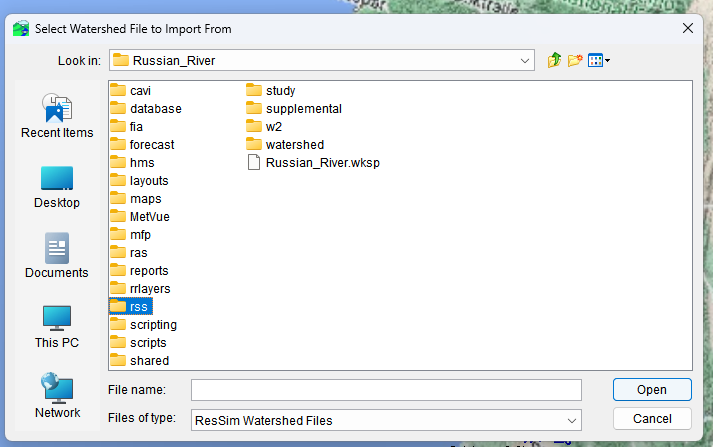
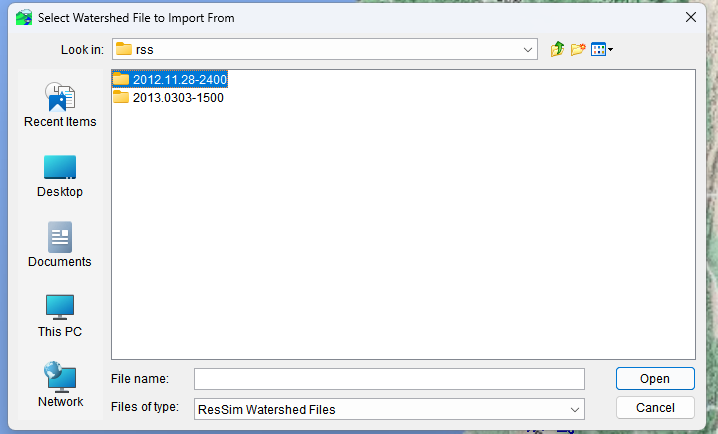
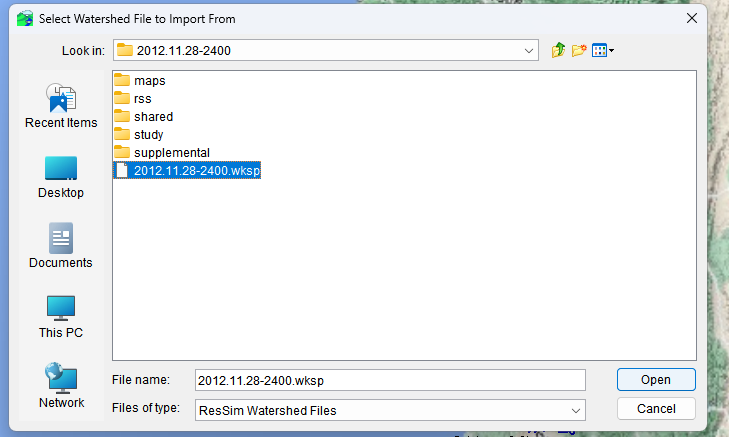
2) Select the watershed file to import from the browser (QUICK START GUIDE FILE POINTS TO A DIFFERENT FILE WHICH DOES NOT WORK. So do not follow the Quick start Guide for this step)
Choose the following file:
1) Once the import finishes, an Import Finished message window will open.