Static Web Apps (SWA)
Publish Static Web App with GitHub CI/CD
Create a Static Web App resource in Azure.
If password protection is required, choose the
Standard Tier.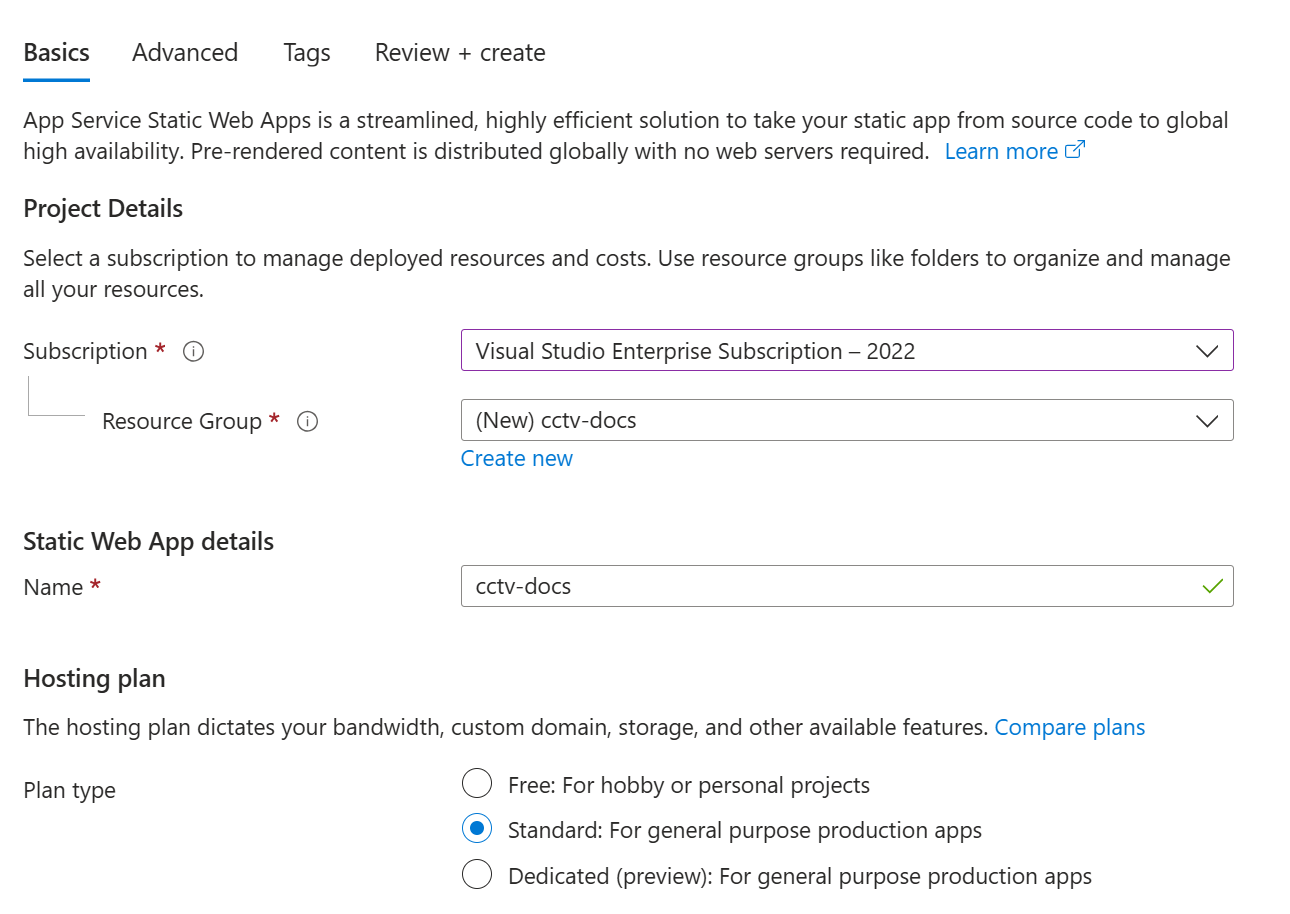
Choose the GitHub repository's account/organization.
Choose the repository.
Choose the branch.
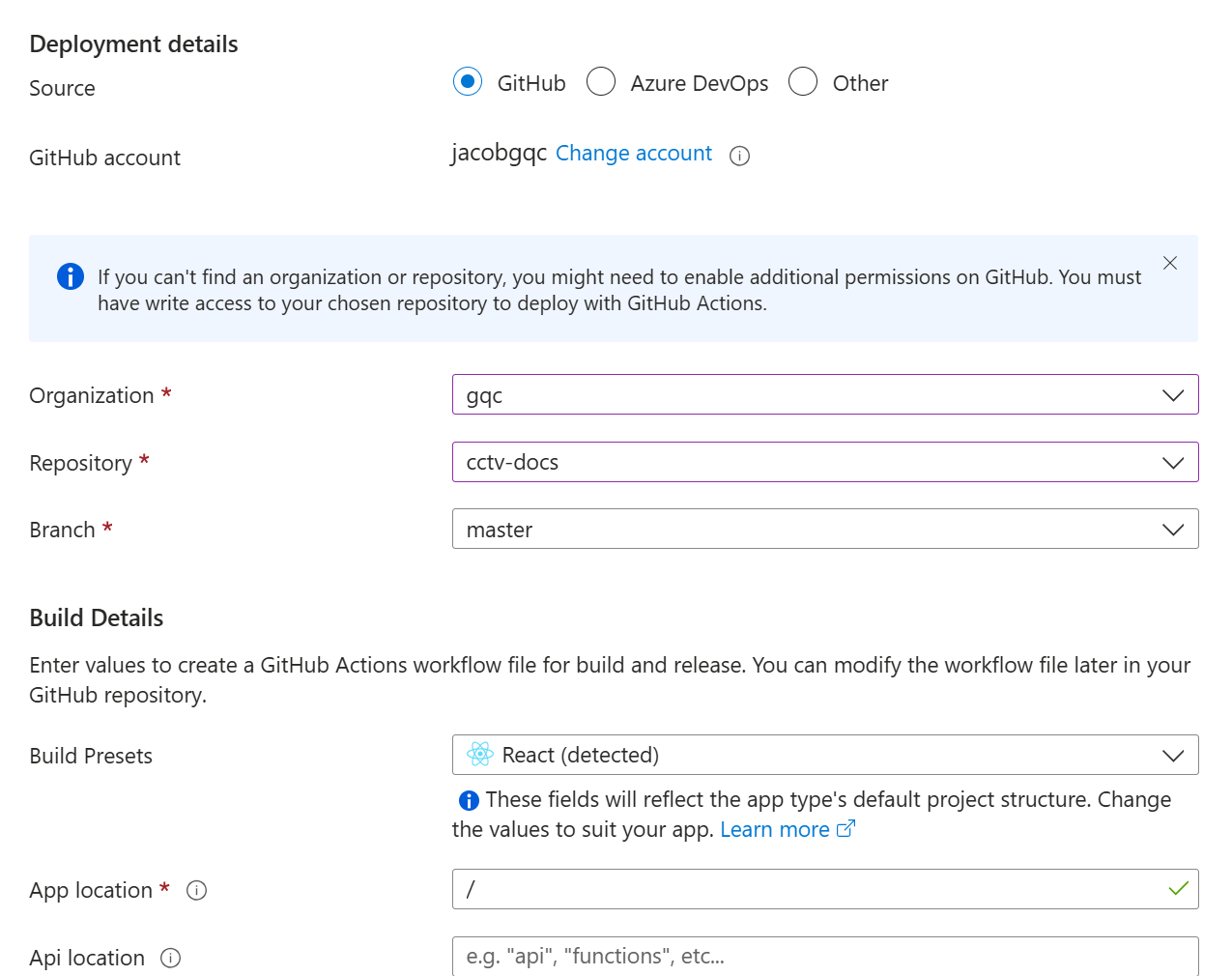
Accept all other defaults and click through until you can click
Create.To assign a password: After the resource is finished creating, go to Configuration and change the setting so that Password is required for both staging and production environments.
Move a SWA to a different GH Repository
If you need the SWA to be published from a different GH repository, you can follow these steps:
- In the new repository, create two nested subdirectories (if they don't exist) under the root directory like
.github/workflows/ - Go to the old directory under
.github/workflows/and grab the proper workflow file. - Move the old workflow file to the new location defined in step 1.
- Open the SWA in Azure Portal.
- At the top of the main page for the SWA resource, click on
Manage deployment tokenand copy the token. - Go to the repository in github.com, click on settings, scroll down in the left nav bar and select
Secrets and variables > Actions. - Click
New repository secretand paste the copied Azure token into theSecret *field. - Before submitting, open another browser and go to the same page in the old repository. Copy the
Name *field from the old repository's secret and paste it in for the name in the new repository. - Click
Add secretto submit it. - Clean up:
- Remove the secret from the old repository.
- Remove the workflow yml file from the old repository.