Best Practices
This doc contains best practices to use while writing python code either in
.pyfiles or jupyter notebooks.
Works for both (py and ipynb)
Dealing with file paths
- Do not concatenate file paths
- Use
os.path.joinor usepathlib - While printing statement using strings and variables, do not use string concatenation, use string interpolation with f'strings.
path = 'folder1'
new_path = f'{path}/folder2' # do not use this

# instead use,
import os
new_path = os.path.join('folder1', 'folder2')

# or
from pathlib import Path
path = Path('folder1')
new_path = path/'folder2'
Using pathlib.path also allows you to use the .exists() method. The same also applies for the os library.
if new_path.exists():
  # do something
  pass
While using pandas
While writing a file to csv using df.to_csv remember to set, index = False. Doing so, you won't write the internal index that pandas uses to number the rows in the dataframe.
df.to_csv('foo.csv') # avoid using this
df.to_csv('foo.csv', index=False) # use this instead
Note: At times you might need the index value from the dataframe for processing, at those times do not use index=False.
os.system vs subprocess.run
When we wish to run bash/windows commands through python, we can either use os.system or subprocess.run.
TLDR:
Use subprocess.run over os.system, as subprocess captures the StdOutput and StdError printed on the console which os does not do.
Response from ChatGPT
os.system and subprocess.run are both Python functions used for running external shell commands or executing other programs. However, there are some differences between them.
Functionality:
os.system: Executes the command in a subshell and returns the exit status of the command.subprocess.run: Runs the command in a subprocess, captures its output, and returns aCompletedProcessobject that contains information about the command's execution.
Return Value:
os.system: Returns the exit status of the command as an integer. It doesn't capture the command's output.subprocess.run: Returns aCompletedProcessobject that provides access to the command's output, exit status, and other information.
Capturing Output:
os.system: Doesn't capture the output of the command directly. However, you can redirect the output using shell redirection (e.g.,os.system('command > output.txt')) or by capturing the output using a shell command (os.system('command > output.txt && cat output.txt')).subprocess.run: Captures the output of the command automatically and provides it as part of theCompletedProcessobject. You can access the output using thestdoutattribute of the returned object.
Command Execution:
os.system: Executes the command using the shell of the underlying operating system, which means it can interpret shell-specific syntax (e.g., wildcard expansion, pipes).subprocess.run: Executes the command directly without invoking the shell. It requires the command and its arguments to be provided as a list of strings.
Flexibility and Control:
os.system: Provides limited control over the execution of the command and doesn't allow fine-grained control of input/output or error handling.subprocess.run: Provides more flexibility and control over the execution. You can specify input/output streams, handle errors, set timeouts, and more.
In general, it is recommended to use subprocess.run or other functions from the subprocess module for running external commands, as it provides more control and flexibility compared to os.system.
For jupyter notebooks
Using nbdev in github
- Dealing with notebooks, especially in Github, is tricky since the outputs and metadata from notebooks are not completely interpreted and when we want to compare a difference of a file after a commit, the github difference is not interpretable.
- To solve this issue, we use
nbdev, a tool that helps ease the usage of notebooks, creating python scripts from notebooks, metadata cleaning and also generating documentation from notebooks. More details can be found here. - Using this, we can see only the differences in the actual code and output, and not the metadata. This also helps ease the running github CI pipeline for repositories with notebooks.
- Hence, any new repositories created that contains notebooks should use
nbdev. Refer togqc/gqc-utility-notebooksrepository as an example on usingnbdevin a repository.
Using regex expressions
You can use regex expressions to find properties and methods of objects. In the following fashion.

The following expression allows us to see all methods in the pd.DataFrame object which contain the letters is.
Viewing docstrings and source code
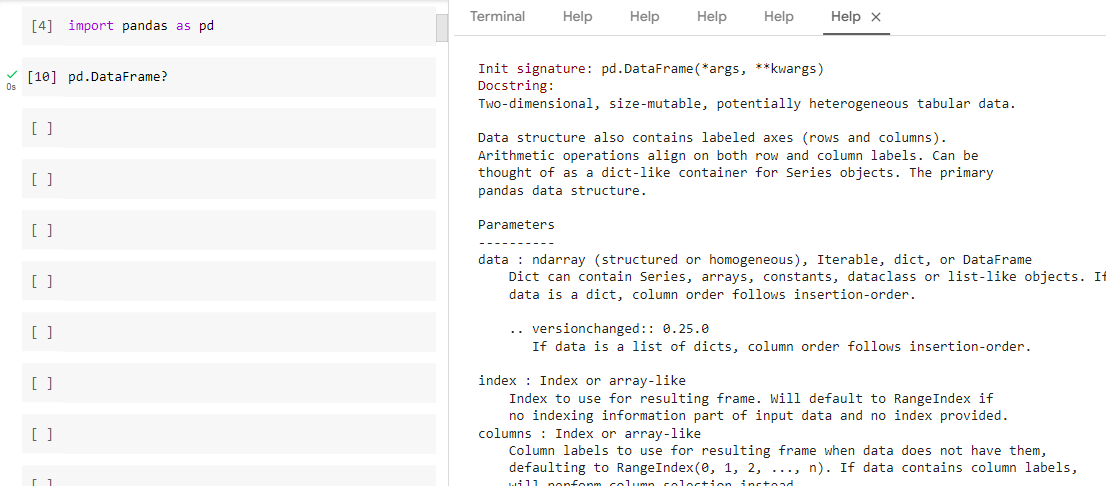
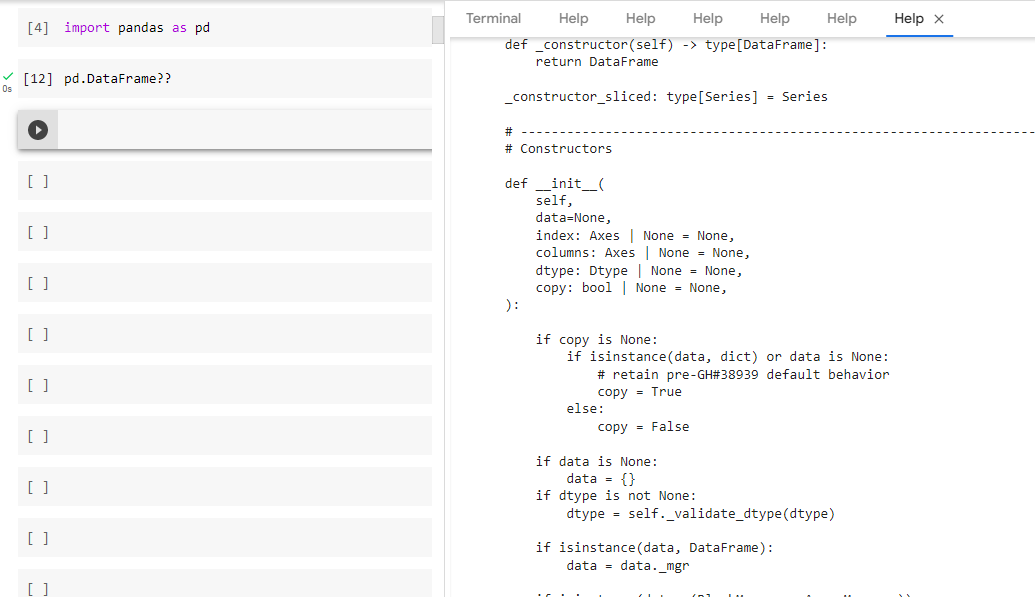
You can use ? and ?? to view docstrings and (docstrings + source code) respectively. You can use it in the following fashion.
To view docstrings (use ?)
To view docstrings + src code (use ??)
Images
- This is a common issue with notebooks, when we want to use images in the markdown cells.
- Unlike Github where we can paste images directly, it is risky to copy and paste images in notebooks, since pasting images adds the image as a string of random characters and symbols, of length > 500 characters.
- This is a issue especially when we are using documentation generator like
nbdevorsphinx. - So, in these cases, save the image in a
/mediafolder and reference it in the markdown cell like this: