Managing Node.js with NVM for Windows
Background
nvm use was failing to switch Node.js versions because an older standalone Node.js installation (21.19.4) was still registered on the system. Even after running nvm use, node -v continued to resolve to the globally installed copy under Program Files, so the PATH never picked up the version created by NVM for Windows.
To allow nvm to manage Node.js releases correctly, I uninstalled the standalone Node.js entry from Settings → Apps → Installed apps. Once removed, nvm use immediately pointed to the version stored under the NVM-managed directory.
Install NVM for Windows
Download the latest installer from https://github.com/coreybutler/nvm-windows/releases.
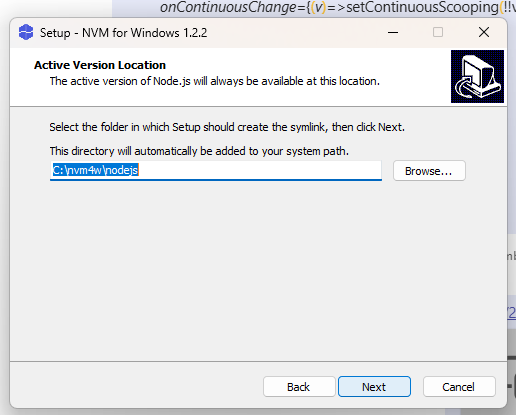
Run the setup and accept the default paths shown below:
- NVM root:
C:\Users\PranathiInduri\AppData\Local\nvm - Symlink directory for the active Node.js version:
C:\nvm4w\nodejs
- NVM root:
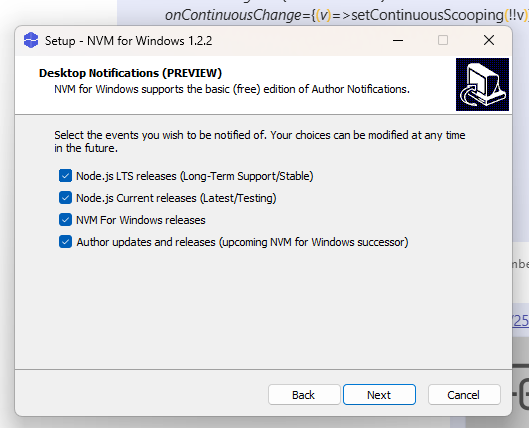
Review the optional notifications screen and leave the defaults enabled if you want release alerts.
Click Install to finish. The installer adds
C:\Users\PranathiInduri\AppData\Local\nvmto PATH and creates theC:\nvm4w\nodejssymlink directory.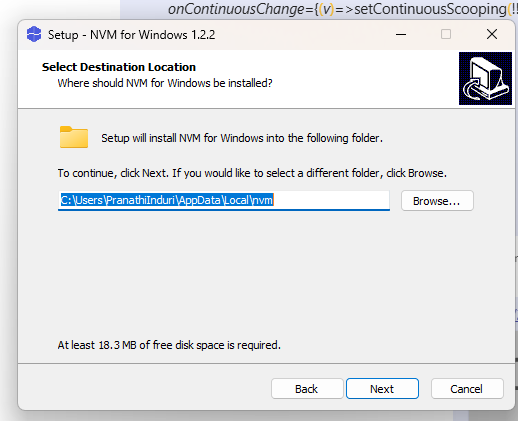
Using NVM
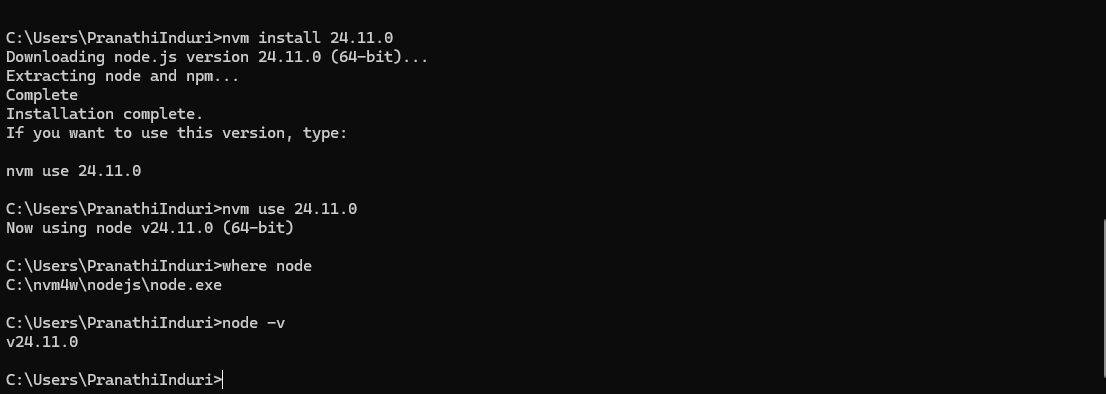
Open a fresh terminal (PATH updates require a new session) and run:
nvm list available– view all downloadable Node.js releases.nvm install <version>– install a specific version, for examplenvm install 24.11.0.nvm use <version>– activate the installed version in the current environment, e.g.nvm use 24.11.0.node -v– confirm the active version. If NVM is configured correctly you should see the version you just activated.where node– verify that Node.js resolves toC:\nvm4w\nodejs\node.exe. Anything underProgram Filesindicates another standalone install is still present.
Troubleshooting Notes
- If
nvm usereports success butnode -vshows a different version, check Settings → Apps for a leftover Node.js entry and uninstall it. - Always close and reopen your terminal after changing versions so the PATH refreshes.
- Global packages installed before migrating to NVM will not follow automatically. Reinstall them under the NVM-managed version (for example,
npm install -g yarnafter runningnvm use).